# Flux comanda CTX

### Oferta client

1. Accesati meniul **Vanzari - Oferte client** si adaugati o noua oferta.
2. Completati campurile in oferta si dati Ok.
3. Apasati **Calculatie preturi**. Se va deschide o pagina unde va aparea produsul selectat anterior.[![image.png](https://help.rvx.ro/uploads/images/gallery/2026-08/scaled-1680-/8wGimage.png)](https://help.rvx.ro/uploads/images/gallery/2026-08/8wGimage.png)
4. Completati campurile din acea pagina pentru a calcula pretul. Dupa completare dati Ok.
5. Reintrati pe oferta si veti vedea preturile din oferta calculate.[![image.png](https://help.rvx.ro/uploads/images/gallery/2026-08/scaled-1680-/hC6image.png)](https://help.rvx.ro/uploads/images/gallery/2026-08/hC6image.png)

### Comanda client

1. Din **Oferta client** acceseaza **Actiuni -&gt; Genereaza comanda**.[![image.png](https://help.rvx.ro/uploads/images/gallery/2026-08/scaled-1680-/gNUimage.png)](https://help.rvx.ro/uploads/images/gallery/2026-08/gNUimage.png)
2. Din fereastra de dialog selectati oferta pentru care se doreste generarea comenzii, apoi apasati butonul **Genereaza**.[![image.png](https://help.rvx.ro/uploads/images/gallery/2026-08/scaled-1680-/2HNimage.png)](https://help.rvx.ro/uploads/images/gallery/2026-08/2HNimage.png)
3. Se creeaza automat **Comanda client**, preluand toate datele din ofeta.[![image.png](https://help.rvx.ro/uploads/images/gallery/2026-08/scaled-1680-/DVeimage.png)](https://help.rvx.ro/uploads/images/gallery/2026-08/DVeimage.png)
4. In tab-ul **Plata** din comanda client se face esalonarea platii. Alegeti daca plata se face sub forma de **avans, rate sau lichidare,** iar totalul acestora trebuie sa fie egal cu valoarea comenzii.[![image.png](https://help.rvx.ro/uploads/images/gallery/2026-08/scaled-1680-/AQOimage.png)](https://help.rvx.ro/uploads/images/gallery/2026-08/AQOimage.png)
5. Sigilati comanda.

### Incasare avans 


1. Accesati **ERP -&gt; Contabilitate -&gt; Financiar -&gt; Operatii trezorerie**.
2. Selectati registrul dorit si adaugati o operatie de **Incasare avans**, completand: 
    - **Categoria:** Incasare avans
    - **Nume partener:** Partenerul din comanda client
    - **Numar comanda:** numar comanda client
    - **Valoarea:** Suma incasata de la client
3. Sigileaza incasarea.

### Incasare client

1. Accesati **CRM -&gt; Vanzari -&gt; Incasari client -&gt; Actiuni -&gt; Import ERP**. Aceasta actiune aduce toate operatiile din trezorerie de tip **Incasare avans**.
2. Accesati incasarea dorita si apasati **Citeste serii** care aduce liniile de produs din comanda.[![image.png](https://help.rvx.ro/uploads/images/gallery/2026-08/scaled-1680-/SDQimage.png)](https://help.rvx.ro/uploads/images/gallery/2026-08/SDQimage.png)
3. Bifati articolele pentru care se doreste incasarea avansului si **sigilati incasarea**.
4. Apasati **Factura avans**.[![image.png](https://help.rvx.ro/uploads/images/gallery/2026-08/scaled-1680-/JGSimage.png)](https://help.rvx.ro/uploads/images/gallery/2026-08/JGSimage.png)
5. Se creeaza automat in ERP o factura care contine linia **AVMARFA - Avans factura client**.
6. Sigilati factura.

- **Locatia** si **agentul** din factura sunt stabilite in functie de utilizator.
- **Centrul** este stabilit in functie de centrul producatorului articolului.

![image.png](https://help.rvx.ro/uploads/images/gallery/2026-08/scaled-1680-/vXLimage.png)

### Lansare comanda furnizor

<p class="callout info"><span style="color: #595959;">După sigilarea comenzii client, se poate crea comanda catre furnizor pentru articolele necesare.</span></p>

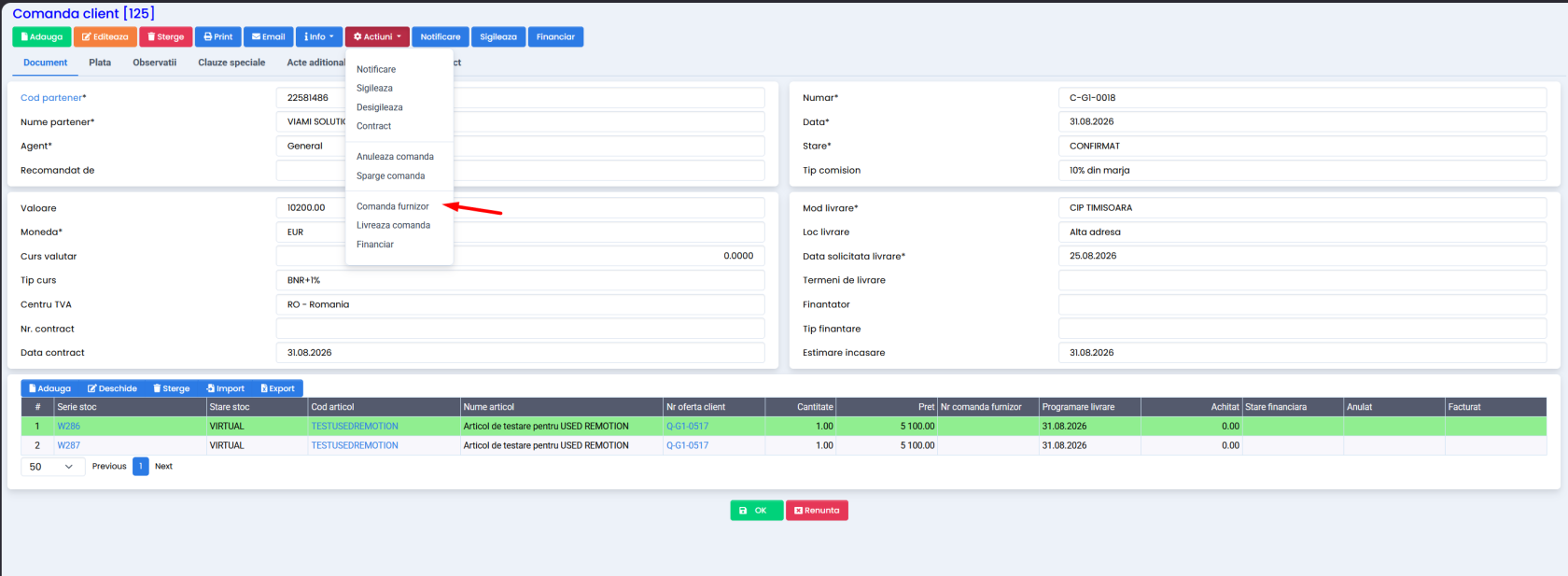
1. Accesati **Comanda client -&gt; Actiuni -&gt; Comanda furnizor**. [![image.png](https://help.rvx.ro/uploads/images/gallery/2026-08/scaled-1680-/Odximage.png)](https://help.rvx.ro/uploads/images/gallery/2026-08/Odximage.png)
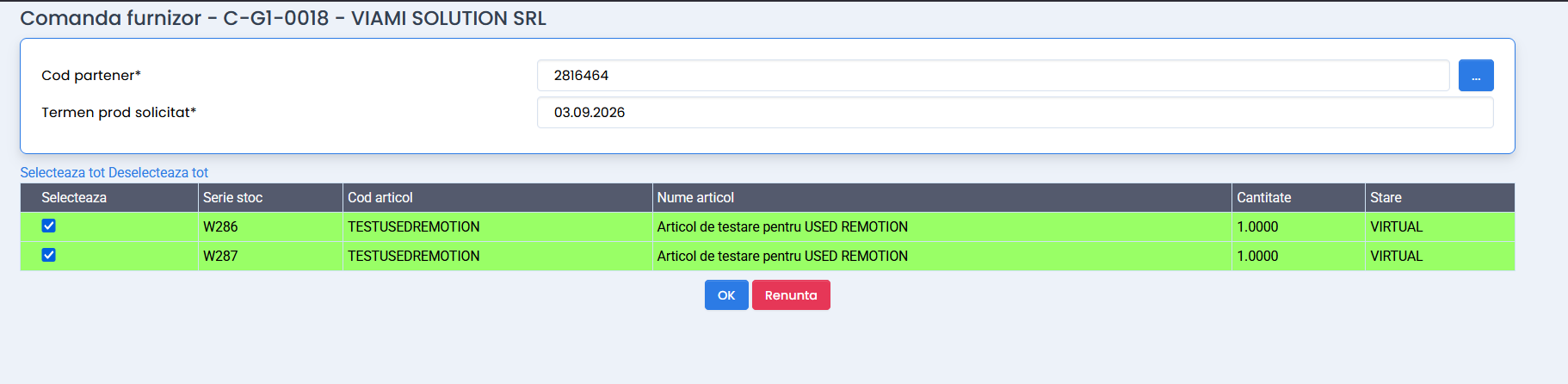
2. <span style="mso-list: Ignore;"><span style="font: 7.0pt 'Times New Roman';"> </span></span>In fereastra de dialog selectati articolele pentru care se doreste crearea comenzii.
3. <span style="mso-list: Ignore;"><span style="font: 7.0pt 'Times New Roman';"> </span></span>Selectati partenerul furnizor.
4. <span style="mso-list: Ignore;"><span style="font: 7.0pt 'Times New Roman';"> </span></span>Selectati termenul de productie solicitat.[![image.png](https://help.rvx.ro/uploads/images/gallery/2026-08/scaled-1680-/VoKimage.png)](https://help.rvx.ro/uploads/images/gallery/2026-08/VoKimage.png)
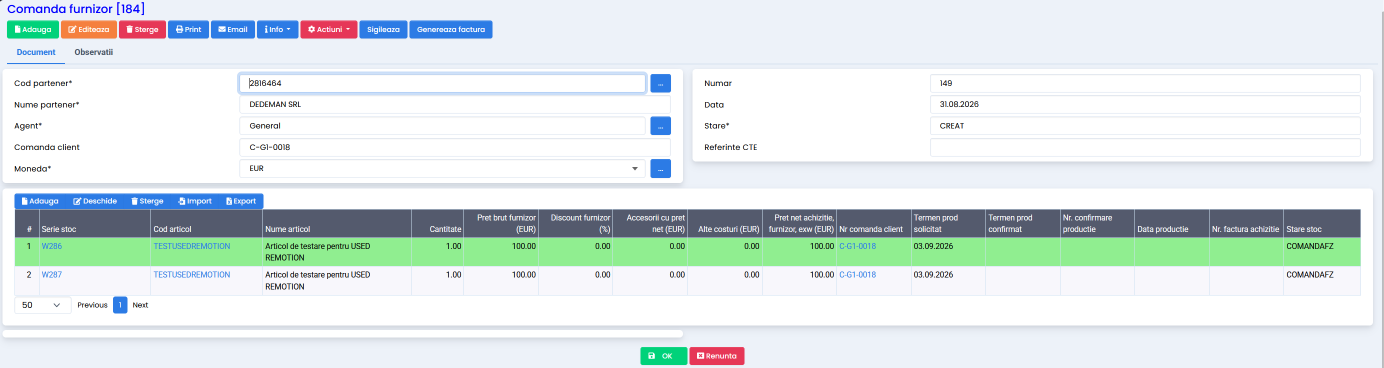
5. <span style="mso-list: Ignore;"><span style="font: 7.0pt 'Times New Roman';"> </span></span>Dupa confirmare, se creeaza **Comanda furnizor**.
6. <span style="mso-list: Ignore;"><span style="font: 7.0pt 'Times New Roman';"> </span></span>La creare, articolele au starea **COMANDAFZ**.

[![image.png](https://help.rvx.ro/uploads/images/gallery/2026-08/scaled-1680-/jF6image.png)](https://help.rvx.ro/uploads/images/gallery/2026-08/jF6image.png)
### Procesare comanda furnizor

*<span style="color: #595959;">Comanda furnizor trece prin mai multe operatiuni, in functie de stadiul producției / livrarii din partea furnizorului. DIn comanda furnizor putem face mai multe actiuni.</span>*

#### Setarea costurilor

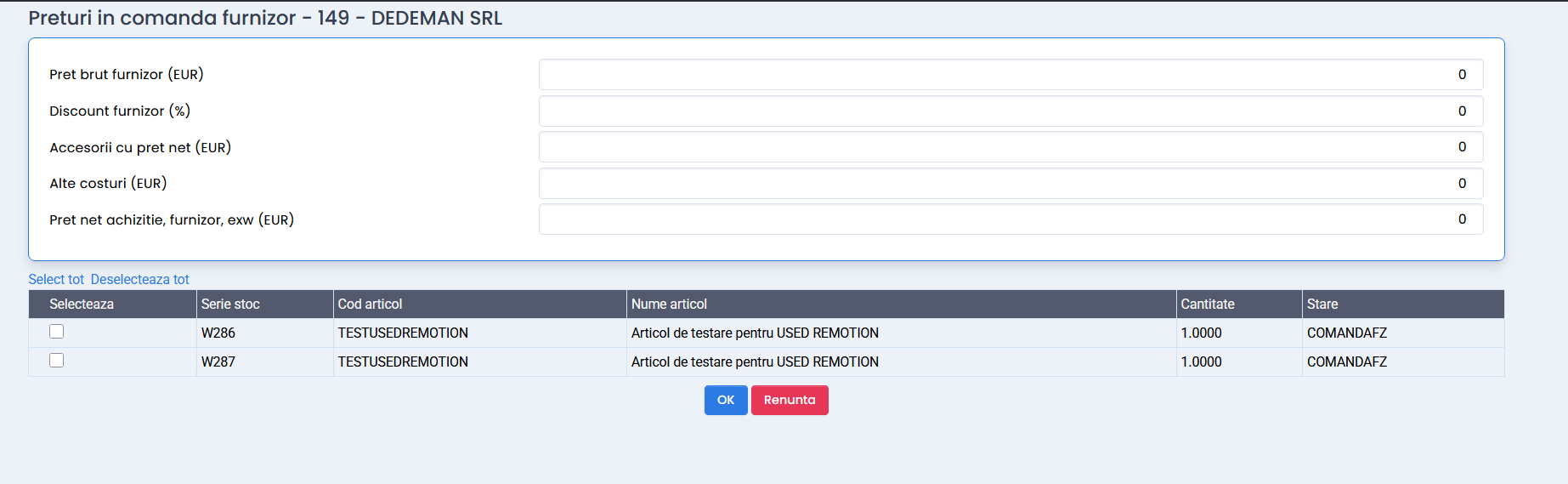
1. <span style="mso-list: Ignore;"><span style="font: 7.0pt 'Times New Roman';"> </span></span>Actiuni -&gt; **Seteaza costuri**.
2. <span style="mso-list: Ignore;"><span style="font: 7.0pt 'Times New Roman';"> </span></span>Introduceti costurile sau structurile de productie primite de la furnizor. [![image.png](https://help.rvx.ro/uploads/images/gallery/2026-08/scaled-1680-/Tabimage.png)](https://help.rvx.ro/uploads/images/gallery/2026-08/Tabimage.png)
#### Incarcarea seriilor

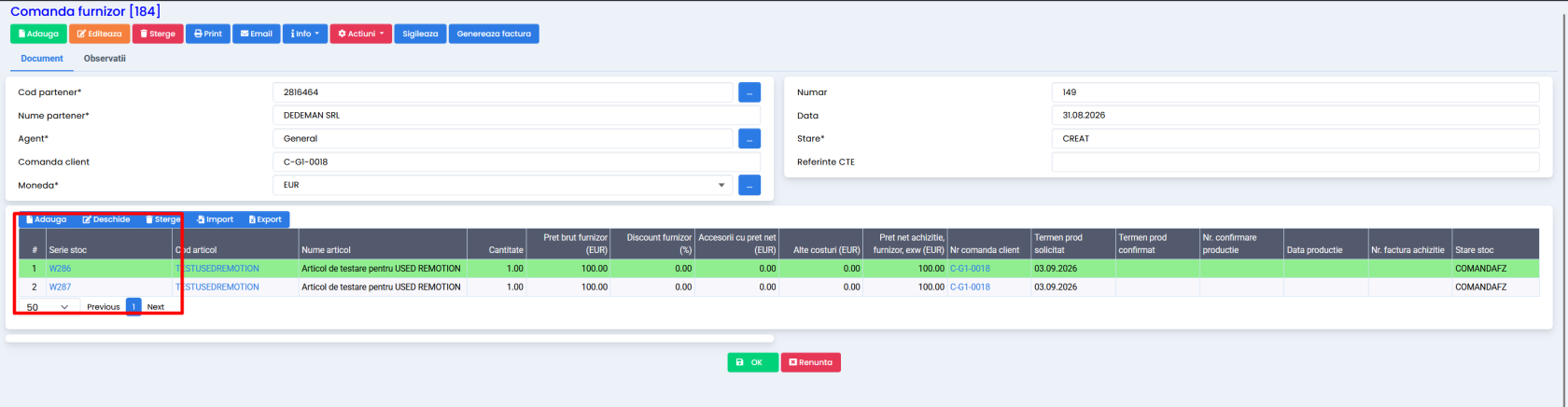
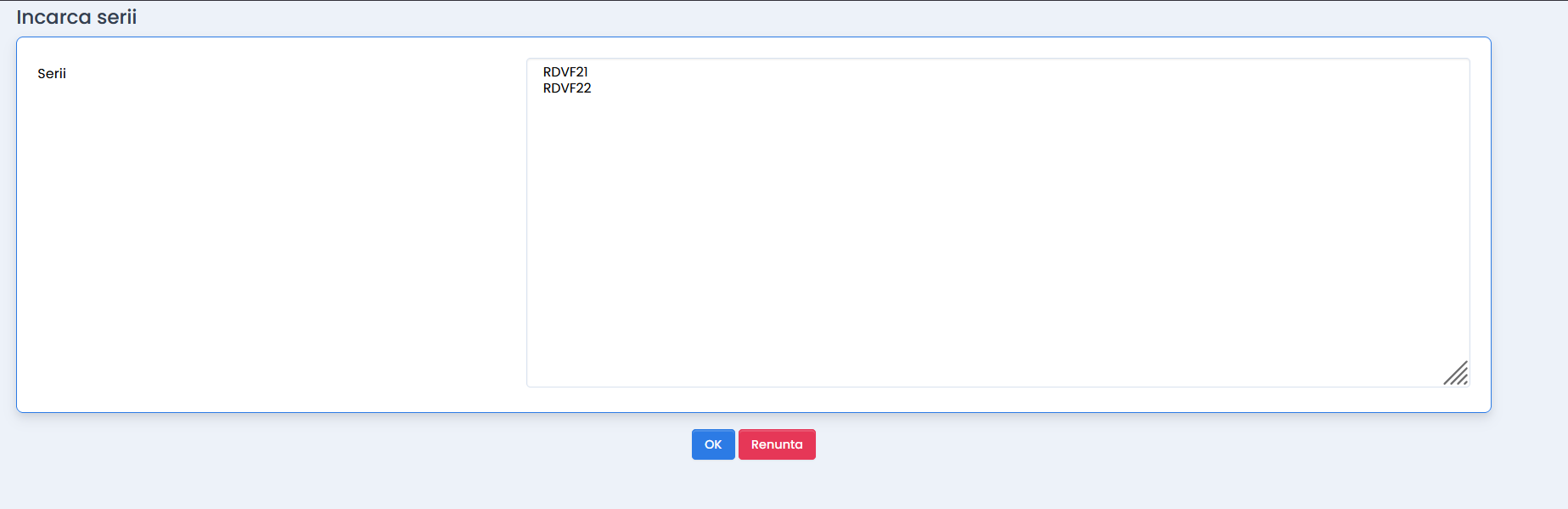
1. Actiuni -&gt; **Incarca serii**.
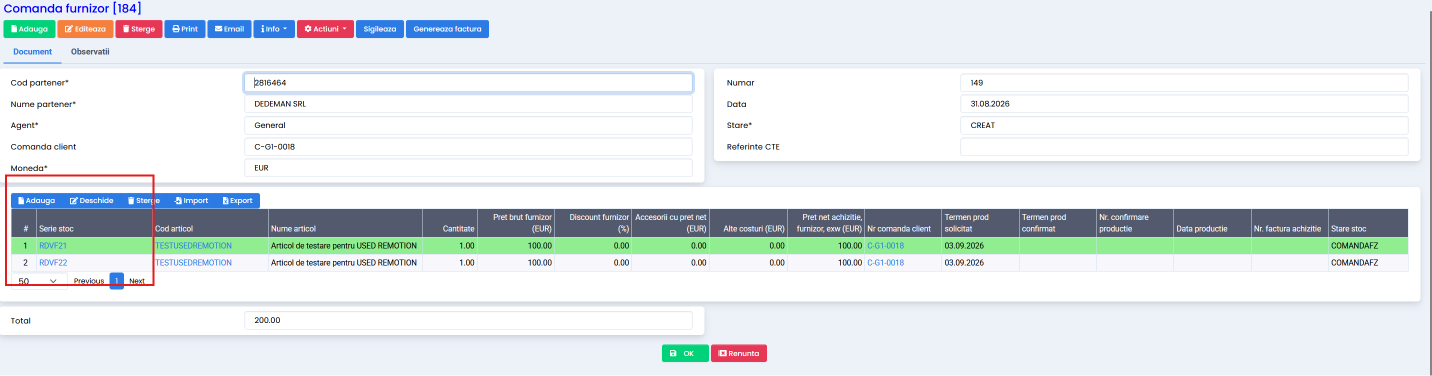
2. Introduceti seriile primite de la furnizor. Modificarile se reflecta automat si in comanda client si in stoc.[![image.png](https://help.rvx.ro/uploads/images/gallery/2026-08/scaled-1680-/TS2image.png)](https://help.rvx.ro/uploads/images/gallery/2026-08/TS2image.png)[![image.png](https://help.rvx.ro/uploads/images/gallery/2026-08/scaled-1680-/ZoJimage.png)](https://help.rvx.ro/uploads/images/gallery/2026-08/ZoJimage.png)
    
    [![image.png](https://help.rvx.ro/uploads/images/gallery/2026-08/scaled-1680-/IT6image.png)](https://help.rvx.ro/uploads/images/gallery/2026-08/IT6image.png)
#### Confirmarea productiei

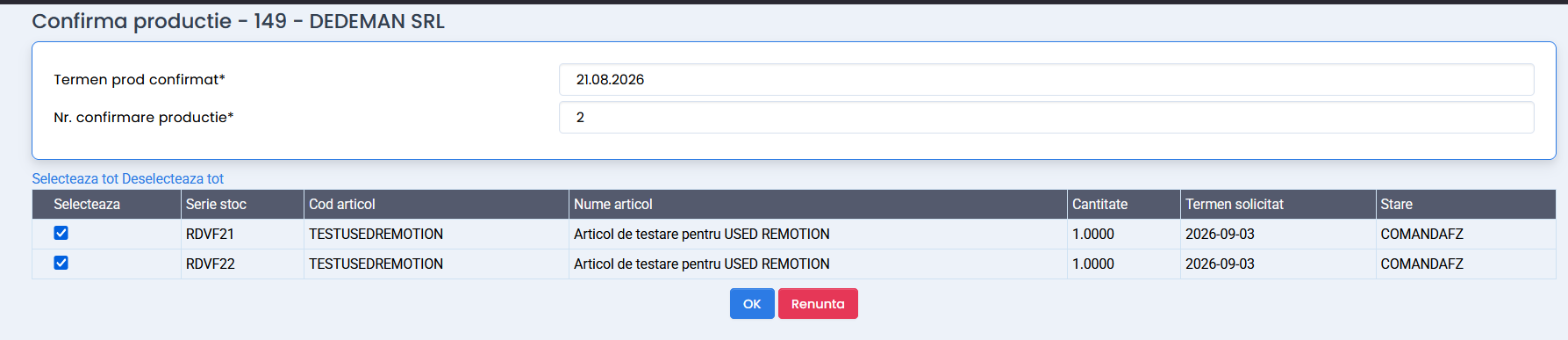
1. <span style="mso-list: Ignore;"><span style="font: 7.0pt 'Times New Roman';"> </span></span>Actiuni -&gt; **Confirma productia articolului**.
2. <span style="mso-list: Ignore;"><span style="font: 7.0pt 'Times New Roman';"> </span></span>Articolul trece in starea **STOC**, iar comanda in starea **CONFIRMATFZ**. [![image.png](https://help.rvx.ro/uploads/images/gallery/2026-08/scaled-1680-/AVRimage.png)](https://help.rvx.ro/uploads/images/gallery/2026-08/AVRimage.png)
#### Executarea productiei

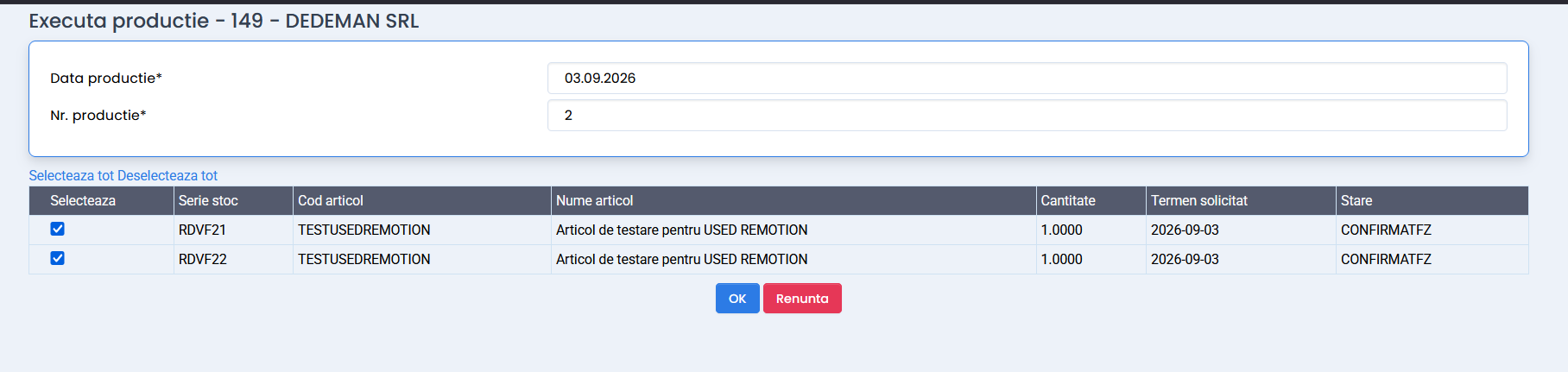
1. <span style="mso-list: Ignore;"><span style="font: 7.0pt 'Times New Roman';"> </span></span>Actiuni -&gt; **Executa productia**.
2. <span style="mso-list: Ignore;"><span style="font: 7.0pt 'Times New Roman';"> </span></span>Starea articolului se schimba in **FABRICAT**.

[![Screenshot_1.png](https://help.rvx.ro/uploads/images/gallery/2026-08/scaled-1680-/screenshot-1.png)](https://help.rvx.ro/uploads/images/gallery/2026-08/screenshot-1.png)
[![image.png](https://help.rvx.ro/uploads/images/gallery/2026-08/scaled-1680-/9Gpimage.png)](https://help.rvx.ro/uploads/images/gallery/2026-08/9Gpimage.png)

### Facturare comanda furnizor

<p class="callout info"><span style="color: #595959;">Factura de cumparare se poate genera doar dupa ce articolul are starea **FABRICAT**.</span></p>

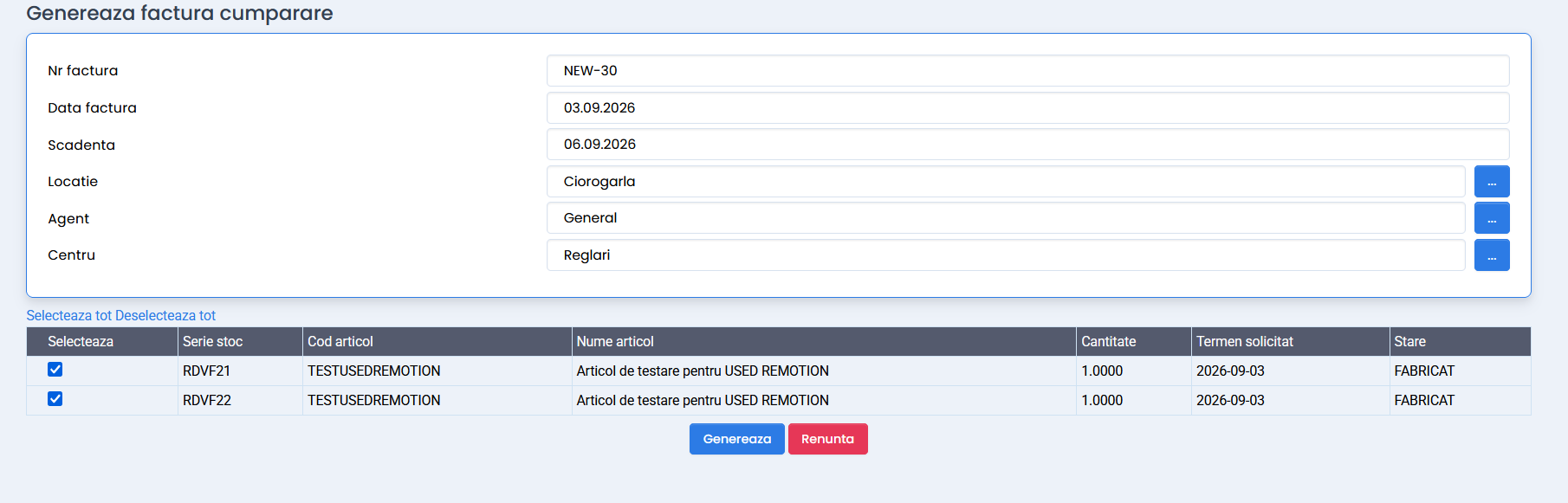
1. Deschideti comanda client si accesati Actiuni -&gt; **Genereaza factura**.
2. Se creeaza in ERP o factura de cumparare aferenta furnizorului
3. In fereastra de dialog completati: numarul facturii primite de la furnizor, data facturarii, data scadentei. Restul informatiilor se completeaza automat. [![image.png](https://help.rvx.ro/uploads/images/gallery/2026-08/scaled-1680-/13jimage.png)](https://help.rvx.ro/uploads/images/gallery/2026-08/13jimage.png)
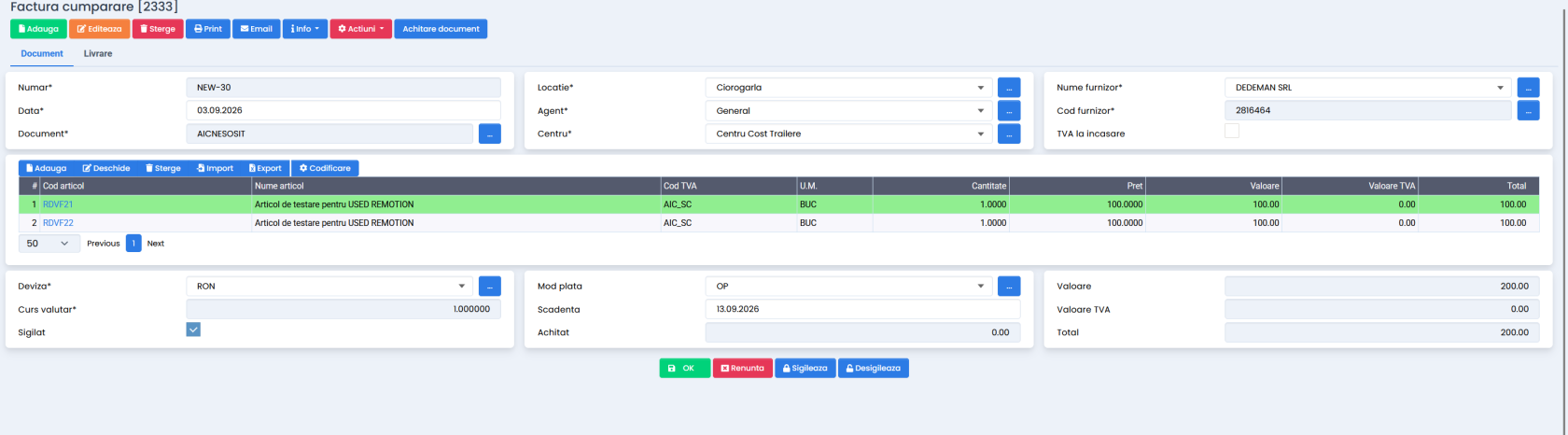
4. Factura trebuie sa aiba unul dintre tipurile de document: **AIC** sau **AICNESOSIT**.[![image.png](https://help.rvx.ro/uploads/images/gallery/2026-08/scaled-1680-/W2Simage.png)](https://help.rvx.ro/uploads/images/gallery/2026-08/W2Simage.png)
### Receptie factura furnizor

1. Intrati in Factura de cumparare si accesati Actiuni -&gt; **Avizare integrala**.
2. Documentul generat trebuie să aiba tipul **ASOSIT**.
3. <span style="mso-list: Ignore;"><span style="font: 7.0pt 'Times New Roman';"> </span></span>Dupa avizare, articolul **intra in stoc**.

### Factura storno avans

<p class="callout info">*Facturarea se realizeaza pentru o singura serie din comanda.*</p>

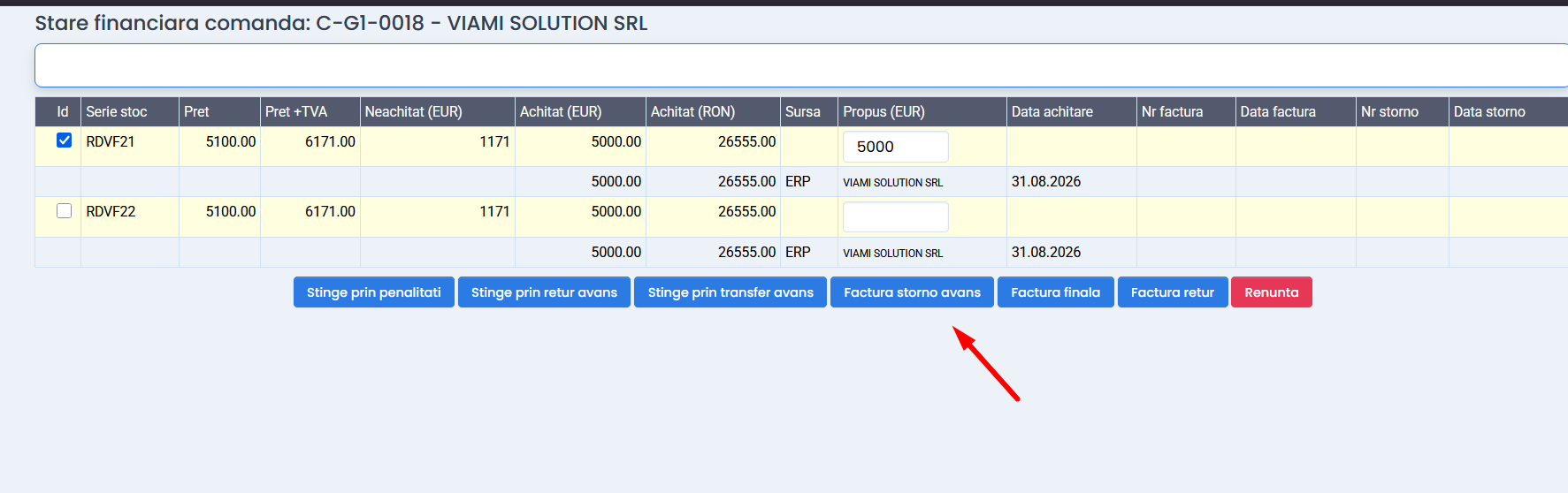
1. <span style="mso-list: Ignore;"><span style="font: 7.0pt 'Times New Roman';"> </span></span>Accesati **CRM -&gt; Comanda client -&gt; Deschideti comanda client -&gt; Actiuni -&gt; Financiar**
2. Selectati seria pentru care se doriti emiterea facturii si introduceti valoarea propusa.
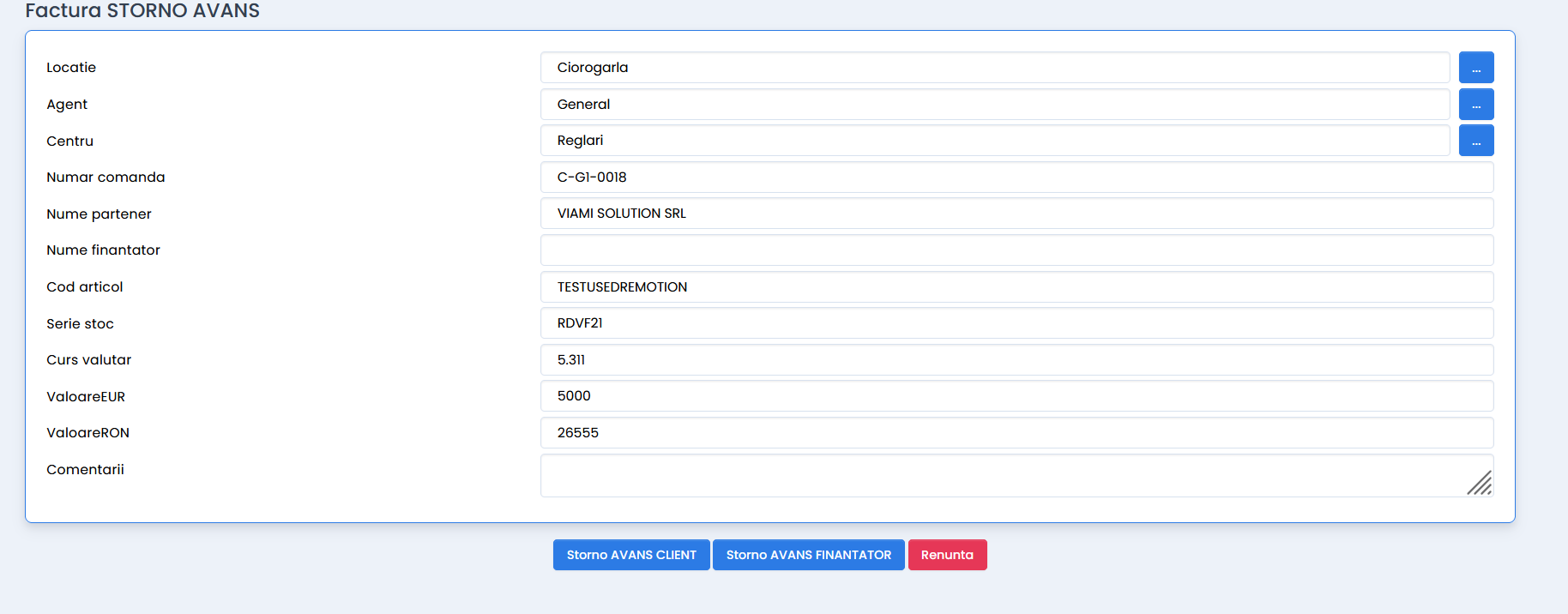
3. Selectati optiunea **Factura storno avans**.[![image.png](https://help.rvx.ro/uploads/images/gallery/2026-08/scaled-1680-/XEDimage.png)](https://help.rvx.ro/uploads/images/gallery/2026-08/XEDimage.png)[![image.png](https://help.rvx.ro/uploads/images/gallery/2026-08/scaled-1680-/R4Oimage.png)](https://help.rvx.ro/uploads/images/gallery/2026-08/R4Oimage.png)
### Factura final

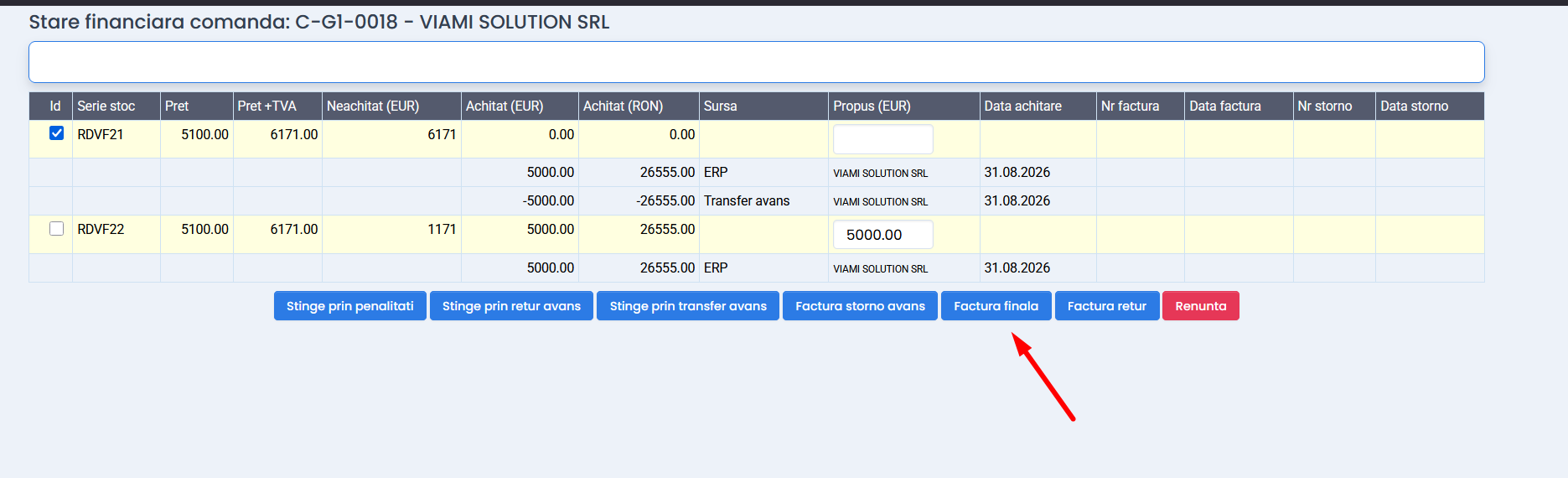
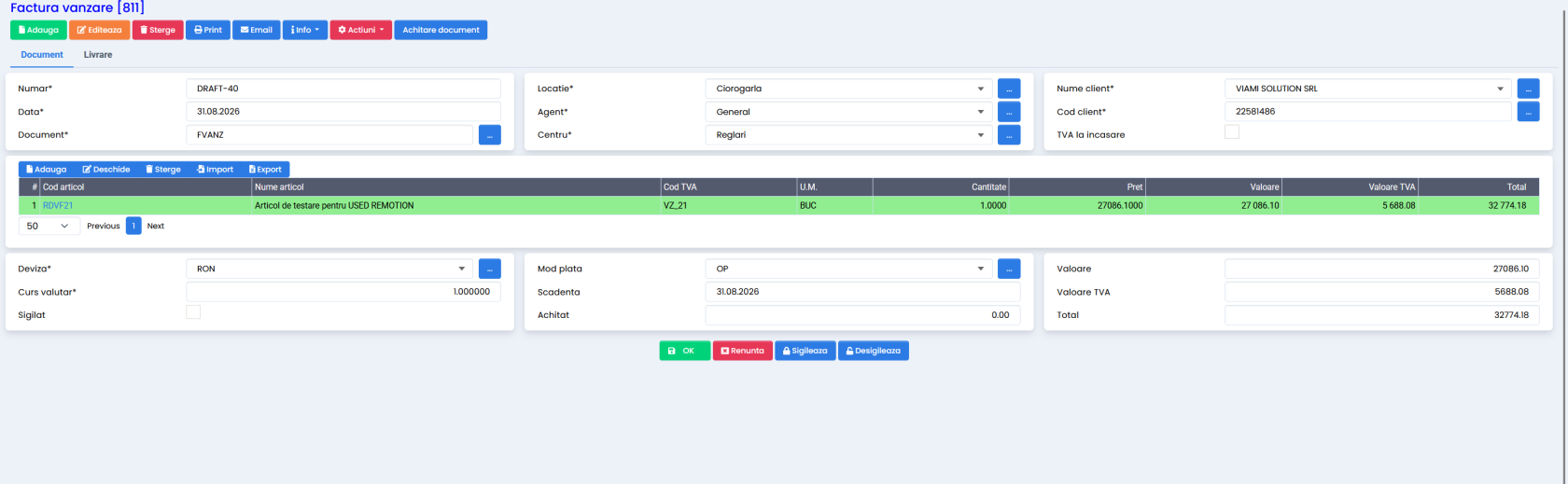
1. Dupa ce am realizat factura storno pentru stingerea avansului, intram din nou in:
    
    **Comanda client -&gt; Deschideti comanda client -&gt; Actiuni -&gt; Financiar**
    
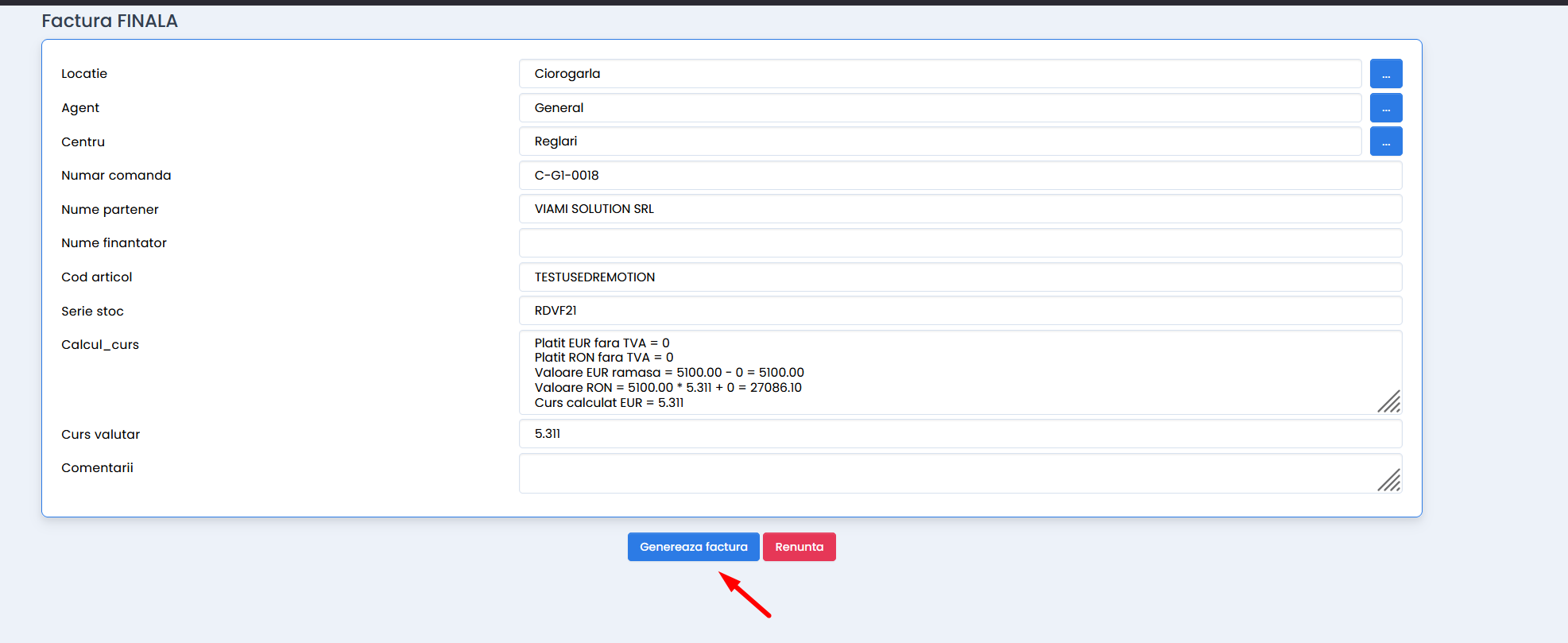
    Pentru a realiza factura finala, selectam seria dorita si apasam butonul **„Factura finala”**.
    
    [![image.png](https://help.rvx.ro/uploads/images/gallery/2026-08/scaled-1680-/jm5image.png)](https://help.rvx.ro/uploads/images/gallery/2026-08/jm5image.png)[![image.png](https://help.rvx.ro/uploads/images/gallery/2026-08/scaled-1680-/JgIimage.png)](https://help.rvx.ro/uploads/images/gallery/2026-08/JgIimage.png)
    
    [![image.png](https://help.rvx.ro/uploads/images/gallery/2026-08/scaled-1680-/0vFimage.png)](https://help.rvx.ro/uploads/images/gallery/2026-08/0vFimage.png)
### Livrare comanda client

<p class="callout info"><span style="color: #595959;">Odata ce articolele au starea **STOC**, acestea pot fi livrate catre client.</span></p>

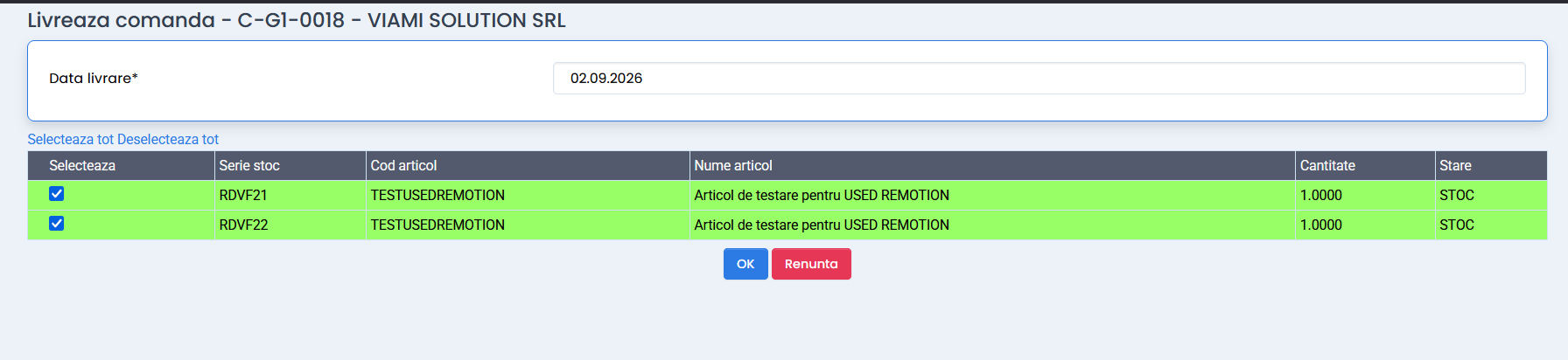
1. <span style="mso-list: Ignore;"><span style="font: 7.0pt 'Times New Roman';"> </span></span>Acesati Comanda client -&gt; Actiuni -&gt; **Livrare comanda**
2. <span style="mso-list: Ignore;"><span style="font: 7.0pt 'Times New Roman';"> </span></span>Selectati articolele pentru care se doreste livrea catre client.[![image.png](https://help.rvx.ro/uploads/images/gallery/2026-08/scaled-1680-/q0Himage.png)](https://help.rvx.ro/uploads/images/gallery/2026-08/q0Himage.png)
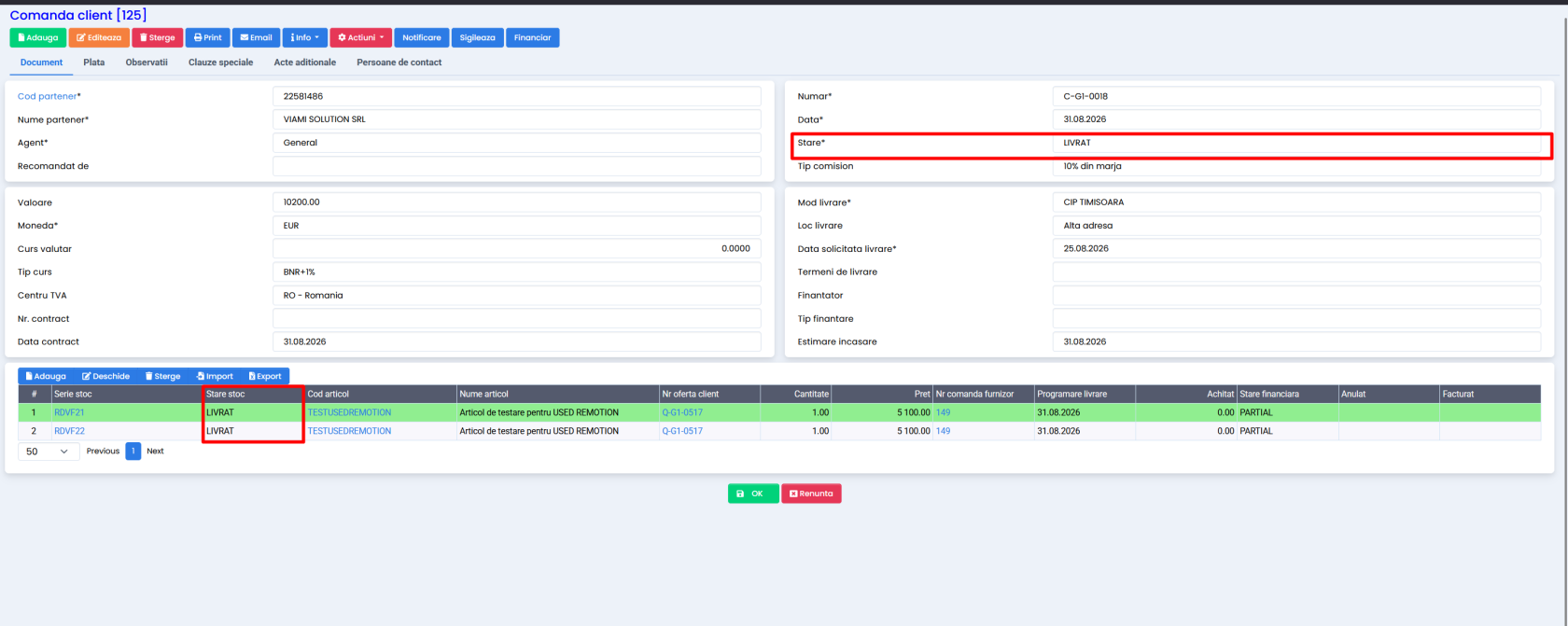
3. In comanda client articolele isi schimba starea in **Livrat**. [![image.png](https://help.rvx.ro/uploads/images/gallery/2026-08/scaled-1680-/Henimage.png)](https://help.rvx.ro/uploads/images/gallery/2026-08/Henimage.png)